
Two-Factor Authentication: Setting It Up Without Locking Yourself Out

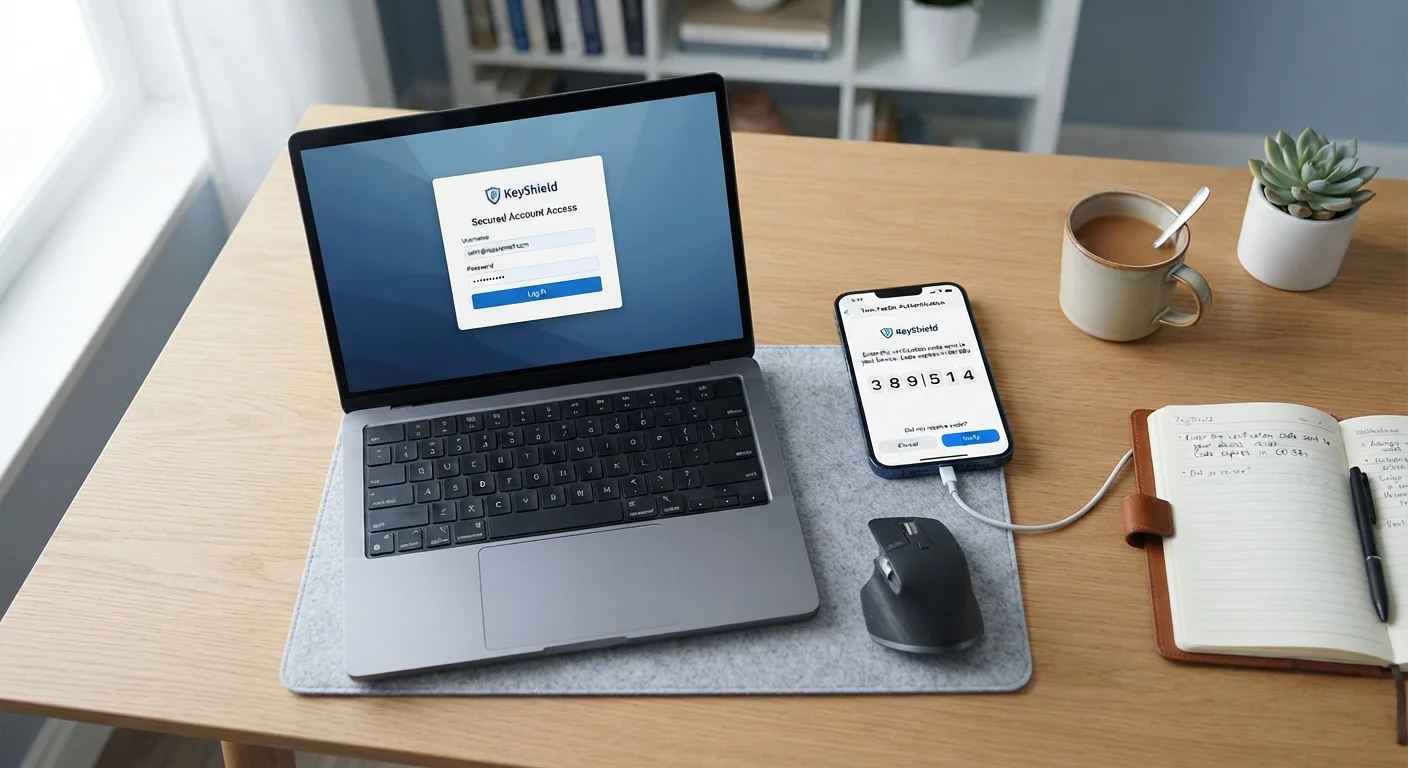
Photo: TargetReads.com | Explore Engaging Reads editorial
Key Takeaways
- Two-factor authentication significantly reduces the risk of unauthorized account access.
- Saving backup codes before enabling 2FA is the most important step to avoid lockouts.
- Authenticator apps are generally more secure than SMS-based verification codes.
- Storing backup codes in a password manager or printed in a safe place prevents emergencies.
- Most major platforms offer 2FA in their account security or privacy settings.
Why Two-Factor Authentication Matters
A password alone is a single point of failure. If it's exposed in a data breach, guessed, or stolen through phishing, an attacker can access your account without any further obstacle. Two-factor authentication — often abbreviated as 2FA or called two-step verification — adds a second requirement at login: something you physically possess, like your phone, in addition to something you know, like your password.
This additional layer means that even if your password is compromised, an attacker still can't get in without also having access to your second factor. For accounts tied to email, finances, or personal data, this protection can make a significant practical difference. Security researchers and consumer advocacy groups broadly recommend enabling 2FA on any account that offers it.
The concern many readers have isn't whether 2FA is worth doing — it's whether they might accidentally lock themselves out of their own account. That's a valid worry, and it's exactly why saving backup codes is treated as a non-negotiable part of the setup process. Done correctly, 2FA improves your security without trading away your access. See also our article on common gadget setup mistakes for similar patterns worth avoiding.
What you will need
What You Need Before You Start
The tools required are minimal, but having them ready before you begin makes the process smoother. Most people need nothing more than the device they already use daily and a reliable plan for where backup codes will live.
Authenticator App (TOTP-compatible)
Generates time-based one-time passcodes locally on your device, without relying on SMS.
Password Manager
Stores backup codes in an encrypted, easily retrievable location alongside your passwords.
Printer or Notebook
For creating a physical copy of backup codes to store in a secure offline location.
Save Your Backup Codes First
Step-by-Step: Enabling 2FA on Your Account
The exact interface varies by platform, but the underlying process is consistent across most services. Follow these steps in order, and don't skip Step 4 — it's the one that prevents the lockouts people worry about.
Open your account's security settings
Log in to the account you want to protect and navigate to its settings menu. Look for a section labeled Security, Privacy & Security, or Account. Most major platforms — email providers, social networks, and financial services — place 2FA options here. If you can't find it, search the platform's help center for "two-factor authentication" or "2-step verification."
Choose your verification method
Platforms typically offer several options: SMS text message, an authenticator app, or in some cases a hardware security key. Select the method that fits your situation. An authenticator app is generally preferred for its security advantages over SMS, but any option is a meaningful improvement over no 2FA at all.
Link your authenticator app or phone number
If you chose an authenticator app, the platform will display a QR code. Open your authenticator app, select the option to add a new account, and scan the code with your phone's camera. The app will begin generating six-digit codes that refresh every 30 seconds. If you chose SMS, enter your mobile number and verify it with the code the platform sends.
Save your backup codes immediately
After linking your verification method, the platform will offer a set of single-use backup codes — typically 8 to 10 codes. Do not skip this step. Download them, copy them into a password manager's secure notes, or print and store them somewhere physically safe. Each code can be used once to access your account if your primary 2FA method is unavailable.
Complete the verification test
Most platforms ask you to confirm that 2FA is working before finalizing the setup. Enter a code from your authenticator app or the SMS you receive when prompted. A successful entry confirms your setup is active. If the code is rejected, check that your phone's clock is set to update automatically — authenticator apps rely on accurate time to generate valid codes.
Test sign-in from a new session
Sign out of the account and log back in from a different browser or private/incognito window. Confirm that the login process now prompts for your second factor. This verifies the full flow works as expected and gives you practice before you rely on it under pressure.
Use a Password Manager for Backup Code Storage
Staying Secure After Setup
Enabling 2FA is a starting point, not a finish line. A few habits will keep your setup working reliably over time.
- Update your 2FA method before switching phones. Transfer your authenticator app accounts to your new device first, or temporarily disable and re-enable 2FA after setting up the new phone.
- Regenerate backup codes if you've used several. Most platforms let you create a new set in the same security settings screen. Old codes are invalidated when you generate fresh ones.
- Don't share verification codes. Legitimate services never ask you to read a code aloud or forward it via text. Requests like that are a hallmark of social engineering attacks.
If your account is one that family members also access or share under certain arrangements, be aware that 2FA can affect those workflows. Our article on sharing app accounts with family covers what to check before adding security layers to shared logins.
SMS Codes Have Known Vulnerabilities
The content on this site is for informational purposes only and is not a substitute for professional advice. Always consult a qualified professional for guidance specific to your situation.