
Setting Up a New Android or iPhone Without Losing Your Old Data

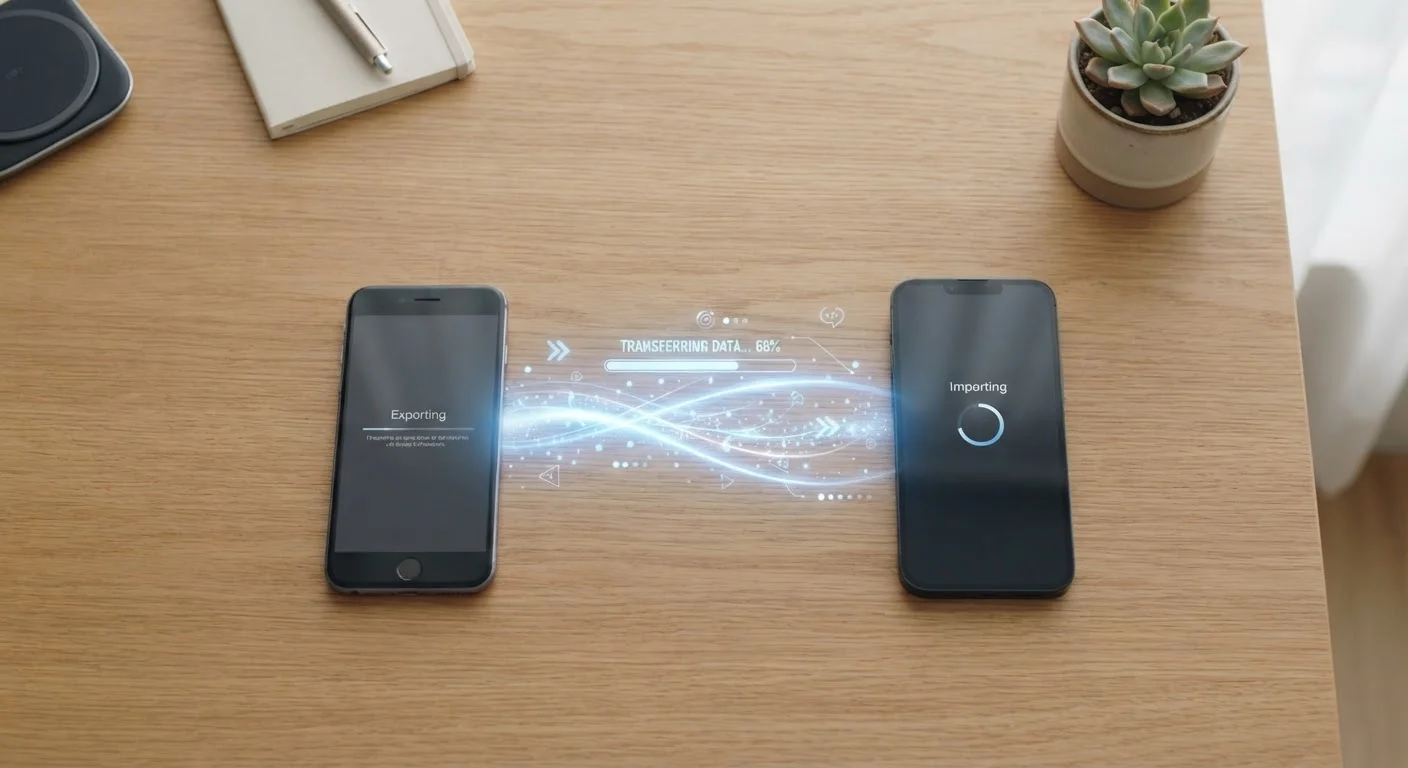
Photo: TargetReads.com | Explore Engaging Reads editorial
Key Takeaways
- Back up your old phone fully before touching your new device to avoid permanent data loss.
- Both Android and iPhone have built-in transfer tools that handle most data automatically.
- Some app data — especially banking and payment apps — must be manually re-verified after transfer.
- Switching between Android and iPhone requires extra steps since the platforms don't share backup systems.
- Confirm your backup completed successfully before factory-resetting or trading in your old phone.
Why Data Transfer Deserves More Attention Than It Gets
Getting a new phone feels exciting — until you realize your contacts are missing, your photos didn't make it, or you're locked out of an app. The transfer process is reliable when you prepare correctly, but it's easy to skip steps that seem optional in the moment and turn out to be critical.
The good news is that both major mobile platforms — Apple's iOS and Google's Android — have built-in tools specifically designed to make transitions easier. Understanding what those tools do and don't handle is the key to a smooth experience.
What you will need
Make sure your setup environment is ready too. A strong, stable Wi-Fi connection is essential — if your home network needs attention, our guide on setting up a home network from scratch can help you sort that first.
Charge Both Phones Before You Start
What Transfers Automatically — and What Doesn't
Most standard data transfers reliably within the same platform:
- Contacts — synced via iCloud or Google and restored automatically
- Photos and videos — transferred via cloud backup or direct device transfer
- Text messages — carried over on same-platform transfers (iMessage history on iPhone, some SMS on Android)
- App list — your apps will reinstall, though some may take time to download
However, the following commonly require manual steps:
- App login credentials stored locally (not in a password manager)
- Two-factor authentication app configurations
- In-app purchases tied to accounts rather than platform stores (verify per app)
- Offline app data — note that not all apps store data in the cloud; our overview of which apps support offline mode explains how local data storage works
iCloud (iPhone to iPhone)
Apple's built-in cloud service backs up and restores contacts, photos, app data, and settings on iOS devices.
Google Account Backup (Android to Android)
Google's integrated backup system saves contacts, app data, call history, and device settings for Android phones.
Move to iOS App (Android to iPhone)
Apple's free Android app transfers contacts, message history, photos, and some app data directly to a new iPhone.
Google Drive (iPhone to Android)
Used to export and transfer contacts and photos from an iPhone before switching to an Android device.
USB-C or Lightning Cable
Enables a direct wired transfer between devices during setup, often faster and more reliable than wireless.
Switching Platforms Requires Extra Planning
Once your new phone is fully set up, it's a good time to review your device security practices. Our guide on keeping your devices secure covers practical steps that don't require a technical background.
Don't Trade In Your Old Phone Too Soon
Step-by-Step: Transferring Your Data
Back Up Your Old Phone Completely
This is the single most critical step. On an iPhone, go to Settings → [Your Name] → iCloud → iCloud Backup and tap Back Up Now. Wait until the backup timestamp updates to confirm it finished. On Android, go to Settings → System → Backup and ensure Google Backup is on, then tap Back up now.
Check your available cloud storage before starting — a full backup may require several gigabytes of free space.
Note Any Apps That Need Manual Migration
Certain apps do not transfer through standard backups. These commonly include:
- Authenticator apps (such as Google Authenticator or Authy)
- Banking and financial apps that require re-verification
- Digital wallet apps — see our overview of how mobile payment apps handle your data for what to expect
Write these down now. You'll need to re-add accounts or re-verify identity in each one after setup.
Start Your New Phone and Select the Transfer Method
Power on your new device and follow the setup prompts until you reach the data transfer or sign-in screen.
- iPhone to iPhone: Choose Transfer from iPhone or restore from your iCloud backup when prompted during setup.
- Android to Android: Sign in with your Google account; the setup wizard will offer to restore from your last backup.
- Android to iPhone: Install the Move to iOS app on your old Android and follow its pairing instructions.
- iPhone to Android: Use Google Drive on your old iPhone to export contacts and photos first, then sign in to your new Android with your Google account.
Wait for the Transfer to Finish — Without Interrupting It
Depending on how much data you have, a transfer can take anywhere from 10 minutes to over an hour. Keep both phones on the same Wi-Fi network, leave them plugged in, and do not lock or dismiss the transfer screen. Interrupting the process can result in partial or corrupted transfers.
Verify Your Data on the New Phone
Once setup completes, methodically check the following before doing anything else:
- Open your contacts app and scroll through to spot-check key entries.
- Open your photo library and confirm recent photos are present.
- Open each important app and verify you're logged in or can log in successfully.
- Check your text message history if it matters to you.
Only after this verification is complete should you consider wiping or trading in your old phone. To avoid pitfalls common to new device setups, it's worth reading about common gadget setup mistakes before you finalize everything.
Re-Authenticate Apps That Require Manual Setup
Return to your list from Step 2. Log back in to banking apps and verify your identity as prompted. If you use an authenticator app, follow its specific account-transfer instructions — most have an account-export or QR-based migration feature built in. Re-add any payment cards to your digital wallet as needed.
The content on this site is for informational purposes only and is not a substitute for professional advice. Always consult a qualified professional for guidance specific to your situation.