
Offline Mode: Which Types of Apps Support It and How to Use It Effectively

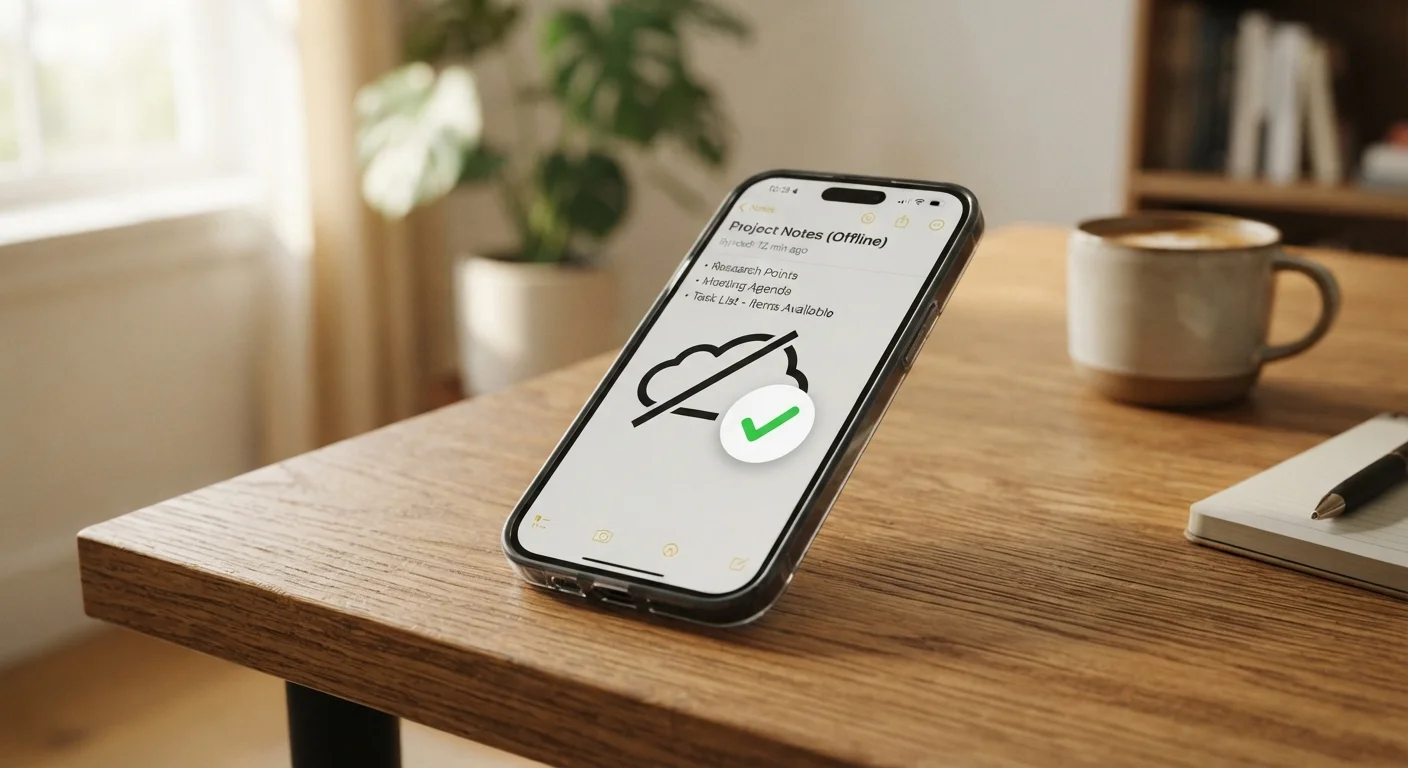
Photo: TargetReads.com | Explore Engaging Reads editorial
What Offline Mode Actually Means
Offline mode is not a single switch built into your phone's operating system — it is a feature that individual app developers choose to build into their products. When an app supports offline use, it saves a copy of content or data to your device's local storage ahead of time, so the app can keep functioning when your Wi-Fi drops or your cellular signal disappears.
The key distinction is between apps that cache automatically and apps that require you to manually trigger a download. Some note-taking and mapping tools cache recent content in the background with no action needed. Others — particularly streaming services — require you to locate a download button and tap it deliberately before you lose connection.
Offline mode
A feature that allows an app to function without an active internet connection by relying on data previously saved to the device.
Cached content
Data that an app has already downloaded and stored locally on your device so it can be accessed without re-fetching from the internet.
Sync
The process of updating locally stored data to match what is on a server, typically done automatically when a connection is restored.
Local storage
Space on your device's internal memory where apps save files, settings, or content independently of any cloud server.
Understanding this difference prevents the frustrating scenario of opening an app mid-flight only to find it blank. Preparation done at home or in any reliable Wi-Fi zone is the foundation of reliable offline use.
Which App Categories Support Offline Use
| Offline setup required | Yes — most apps need content downloaded while online before offline use |
| Common app categories with offline support | Maps, music, podcasts, reading, productivity, video |
| Typical offline content expiry | 30 days (varies widely by app and subscription tier) |
| Storage impact | Offline content can consume several gigabytes of device storage |
| Sync behavior | Changes made offline are typically uploaded when connection resumes |
Maps and navigation apps are among the most practically useful offline tools. Downloadable map regions let you search addresses, get turn-by-turn directions, and view points of interest without any data connection. Coverage areas are stored as large files, so download them on Wi-Fi before travel.
Music and podcast apps typically allow subscribers to download episodes and playlists. Once downloaded, audio plays back identically to the online experience. Note that downloaded content often expires if you go too long without reconnecting — see the note below.
Offline Access Often Requires a Subscription
Reading and e-book apps generally store books directly on your device after purchase or sync, making them inherently offline-friendly once the file is downloaded.
Productivity and note-taking apps vary more widely. Some sync your most recent notes automatically; others require offline mode to be enabled in settings. If you rely on a notes or documents app for work travel, test offline access deliberately before you need it. For a deeper look at what permissions these apps request in exchange for their features, see our guide to app permissions.
Video streaming apps on paid plans commonly support downloads, though resolution options, simultaneous device limits, and expiry windows differ by service and subscription level.
Financial apps — including budgeting tools and digital wallets — generally do not support meaningful offline use, because real-time data accuracy is central to their function. How digital wallet apps handle your money explains why live connectivity is typically required for payment processing.
How to Set Up and Use Offline Mode Effectively
~4.8 billion
Smartphone users worldwide
A large share of those users routinely encounter spotty or no connectivity, making offline app features practically relevant across the globe.
30 days
Common offline content expiry window
Many subscription streaming services set a 30-day playback limit on downloaded content before requiring a reconnection to verify your account.
Follow these practical steps to make offline mode work reliably:
- Download content before you need it. Do this on a Wi-Fi connection to avoid burning through mobile data. Large map areas or video files can be several gigabytes.
- Check your storage. Offline content competes with photos, apps, and system files for space. Periodically clear expired downloads to free room for new ones.
- Enable offline mode in settings when available. Some productivity apps have an explicit toggle — turning it on ensures the app stores your recent documents locally rather than fetching them fresh each time.
- Test it before you depend on it. Enable airplane mode at home and open the app to confirm what is actually accessible. This is the only reliable way to verify offline behavior for your specific account tier and device.
- Reconnect periodically. Downloaded content from streaming services typically needs a connection every 30 days to verify your subscription. Notes and documents sync changes back to the cloud when connectivity returns, so reconnect regularly to keep everything up to date.
If you recently switched phones, confirm that offline downloads transferred correctly or re-download them — see setting up a new phone without losing your data for guidance on what carries over and what needs to be redone manually.
The content on this site is for informational purposes only and is not a substitute for professional advice. Always consult a qualified professional for guidance specific to your situation.