
Signals, Channels, and Bands: The Hidden Architecture of Wi-Fi

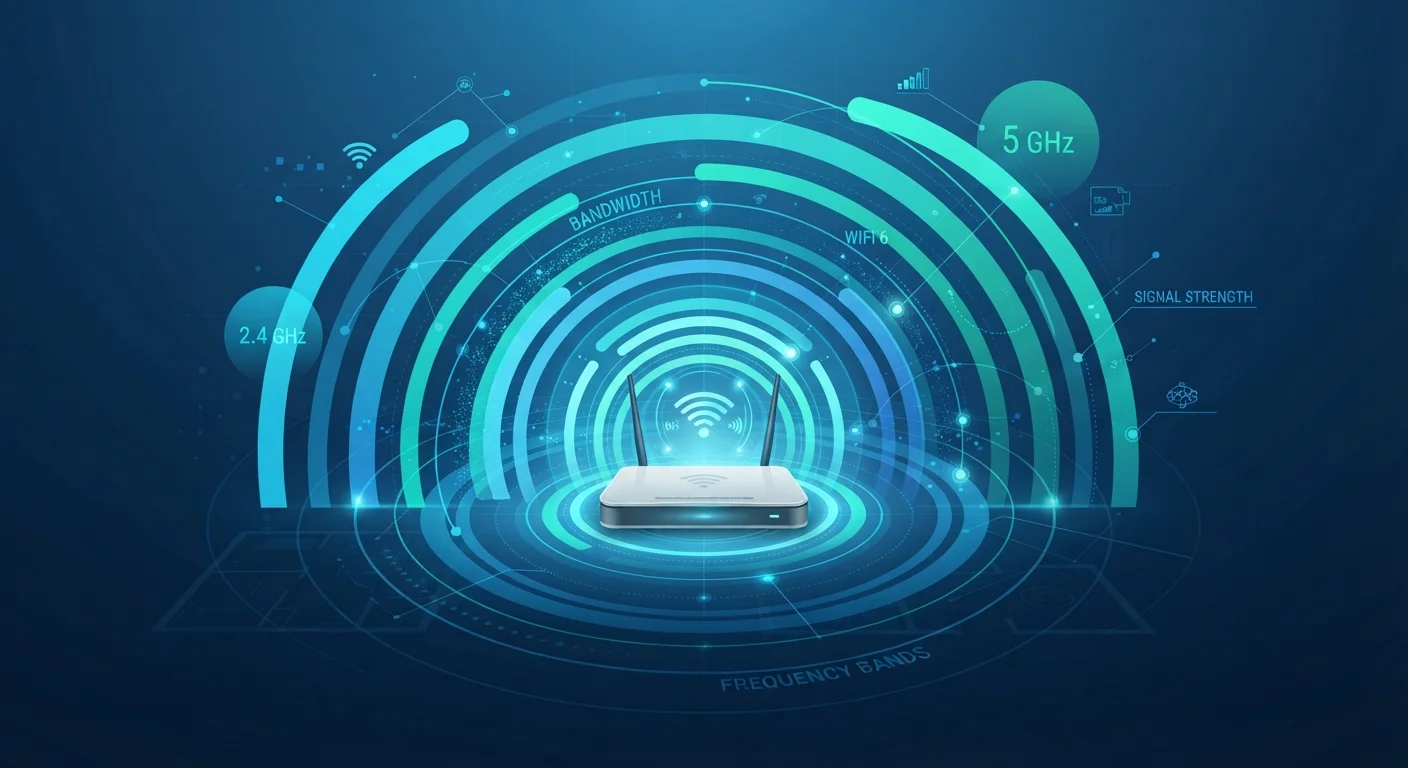
Photo: TargetReads.com | Explore Engaging Reads editorial
Key Takeaways
- The 2.4 GHz band covers longer distances but is more prone to interference and congestion.
- The 5 GHz band offers faster speeds over shorter distances with less interference.
- Channels within each band determine which specific frequency slice your router uses.
- Overlapping channels from neighboring networks cause interference that slows your connection.
- Wi-Fi 6 introduces a 6 GHz band (Wi-Fi 6E) that provides more channels and less congestion.
- Understanding bands and channels helps explain—and often fix—everyday Wi-Fi frustrations.
Why Wi-Fi Uses Radio Waves—and Why That Matters
Your Wi-Fi connection doesn't travel through a wire—it moves through the air as radio waves, the same type of invisible energy that carries FM radio or cell phone signals. A router converts your internet data into radio signals and broadcasts them outward. Your devices pick up those signals and translate them back into usable data.
These radio signals operate at specific frequencies, measured in gigahertz (GHz). The frequency a signal uses determines two critical things: how far it travels and how well it passes through obstacles like walls and furniture. Higher frequencies carry more data but lose strength faster. Lower frequencies travel farther but carry less data at once.
This is the fundamental tradeoff built into every Wi-Fi network—and it's why your router's band settings matter more than most people realize. For a closer look at how walls and physical layout affect signal strength, see why your Wi-Fi signal drops in certain rooms.
11
Total channels in the US 2.4 GHz band
Only 3 of these (channels 1, 6, and 11) are non-overlapping, making channel selection critical in congested areas.
~24+
Non-overlapping channels in the 5 GHz band
The 5 GHz band's wider channel availability is a primary reason it experiences less interference than 2.4 GHz.
59
Additional channels added by 6 GHz (Wi-Fi 6E)
The FCC opened the 6 GHz spectrum for unlicensed Wi-Fi use in 2020, dramatically expanding available airspace for modern routers.
The Two Main Bands: 2.4 GHz vs. 5 GHz
Nearly every home router today broadcasts on two separate frequency bands. Each one serves a different purpose:
- 2.4 GHz: Longer range, better wall penetration, but slower maximum speeds and more prone to interference. This band is shared with many other devices—microwave ovens, baby monitors, older cordless phones, and Bluetooth all operate nearby. In apartment buildings, dozens of neighboring networks may also crowd this band.
- 5 GHz: Shorter range but significantly faster speeds and far less congestion. Because fewer devices and neighboring networks use this band, it tends to be cleaner and more reliable when you're within a good distance of the router.
A practical way to think about it: 2.4 GHz is for range, 5 GHz is for speed. Devices that need consistent performance—laptops, game consoles, streaming devices—generally benefit from connecting to 5 GHz when possible. Smart home gadgets that just need to stay connected across the house often work fine on 2.4 GHz.
Where you place your router also interacts directly with how these bands perform. Common router placement mistakes can undercut even the best band configuration.
Check Which Band Your Device Is Using
Channels: The Lanes Within the Highway
Within each band, the available frequency range is divided into channels—narrower slices that routers use to send and receive data. When multiple nearby networks operate on the same channel, they interfere with each other the same way two people talking simultaneously in a small room make it hard to hear either one.
In the 2.4 GHz band, there are 11 channels in the US—but only channels 1, 6, and 11 are truly non-overlapping. Using any other channel creates partial overlap with its neighbors, compounding interference. The 5 GHz band is more generous, offering roughly 24 non-overlapping channels, which is a key reason it's less crowded.
Most routers select channels automatically, but in dense environments—apartment buildings, offices—manually selecting a less-congested channel can make a noticeable difference. Many router apps now include a built-in tool that shows which channels nearby networks are using, making it easier to find a quieter lane.
Wi-Fi 6 and the Rise of the 6 GHz Band
Wi-Fi 6 (the technical standard known as 802.11ax) is the current generation of Wi-Fi, designed to handle far more devices simultaneously than its predecessors. It doesn't just add speed—it restructures how channels are used. A technology called OFDMA (Orthogonal Frequency Division Multiple Access) lets a single channel serve multiple devices at once, rather than making each device wait its turn.
Wi-Fi 6E goes a step further by unlocking the 6 GHz band—a largely uncrowded spectrum with up to 59 additional non-overlapping channels in the US. Because only Wi-Fi 6E devices can access this band, it avoids the congestion that plagues 2.4 GHz and, increasingly, 5 GHz in dense areas.
It's worth noting that 6 GHz has even shorter range than 5 GHz, so it's most useful in spaces where the router and devices are relatively close. Understanding how your home's size and layout affects coverage can also inform whether a mesh network makes sense—see mesh Wi-Fi vs. traditional routers for a fuller explanation.
For context on how Wi-Fi relates to other wireless technologies in your home, Bluetooth, Zigbee, and Wi-Fi each serve different roles depending on the device's needs.
6 GHz Is Not Backward Compatible
How Understanding Bands and Channels Helps You
You don't need to be a network engineer to benefit from this knowledge. A basic understanding of bands and channels explains why your video call stutters when the microwave runs, why your laptop gets slower speeds in the far bedroom, and why your neighbor's router can interfere with yours.
It also gives you practical levers to pull. Switching a congested device from 2.4 GHz to 5 GHz, changing your router's channel, or simply understanding what your router's dual-band settings mean—these small adjustments can improve everyday performance without spending anything.
Wi-Fi performance is also closely tied to how bandwidth is shared across your household. Knowing both sides of the equation—band efficiency and total bandwidth—gives you a clearer picture of what's shaping your connection experience.
Frequently Asked Questions
The content on this site is for informational purposes only and is not a substitute for professional advice. Always consult a qualified professional for guidance specific to your situation.